
Now we will see the Internal Chat Module of CA Office Automation.”
“This module allows secure and centralized communication between employees and clients directly within the software.”
Step 1 – Message Page
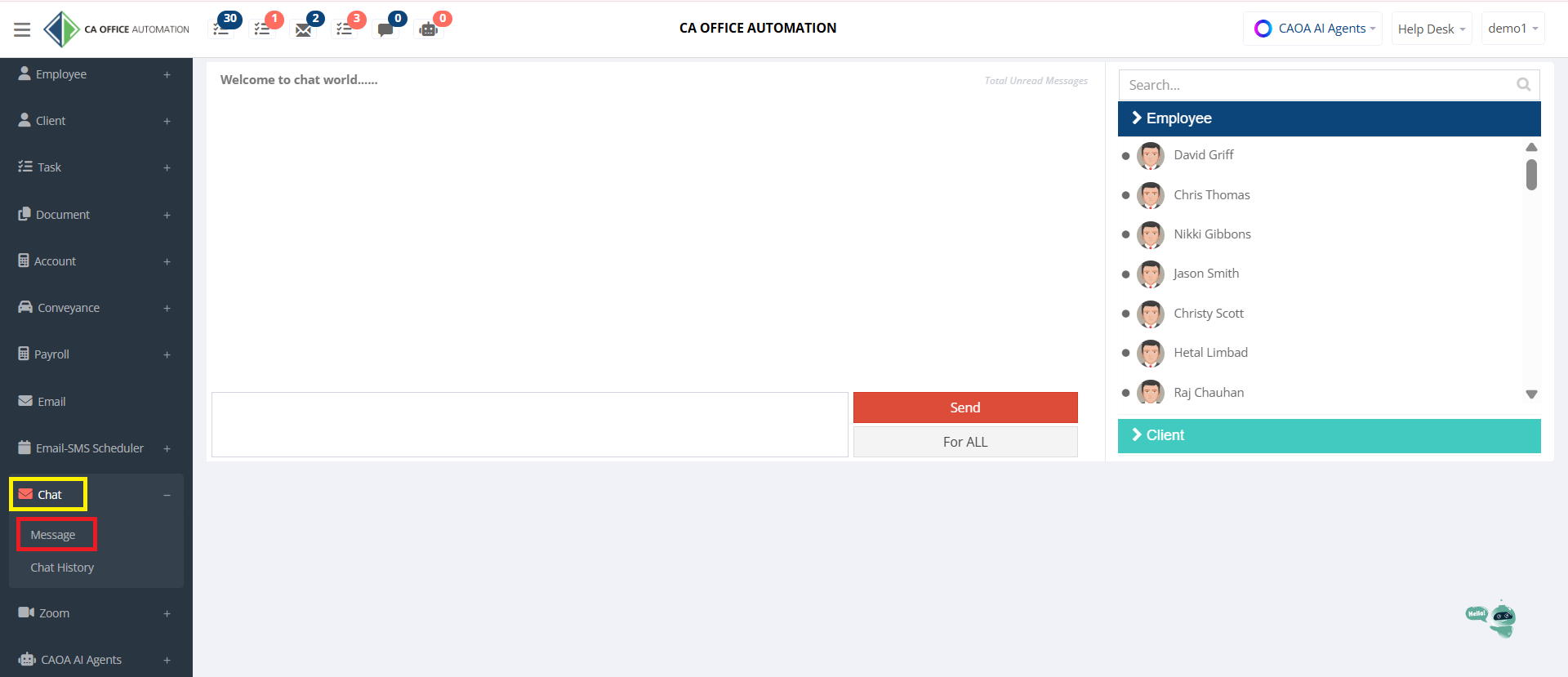
Click on Chat → Message.
“On the right-hand side, you can see the list of Employees and Clients.”
“You can search for any user from the search box and simply click on the name to start chatting.”
“In the center panel, you can see the complete conversation with date and time stamp.”
“To send a message, type your message in the text box below and click on Send.”
“If required, you can also use the ‘For ALL’ option to send a broadcast message.”
“At the top, you can also see the unread message notification count.”
“This ensures no communication is missed.”
Step 2 – Chat History Page
“Now let us see the Chat History page.”
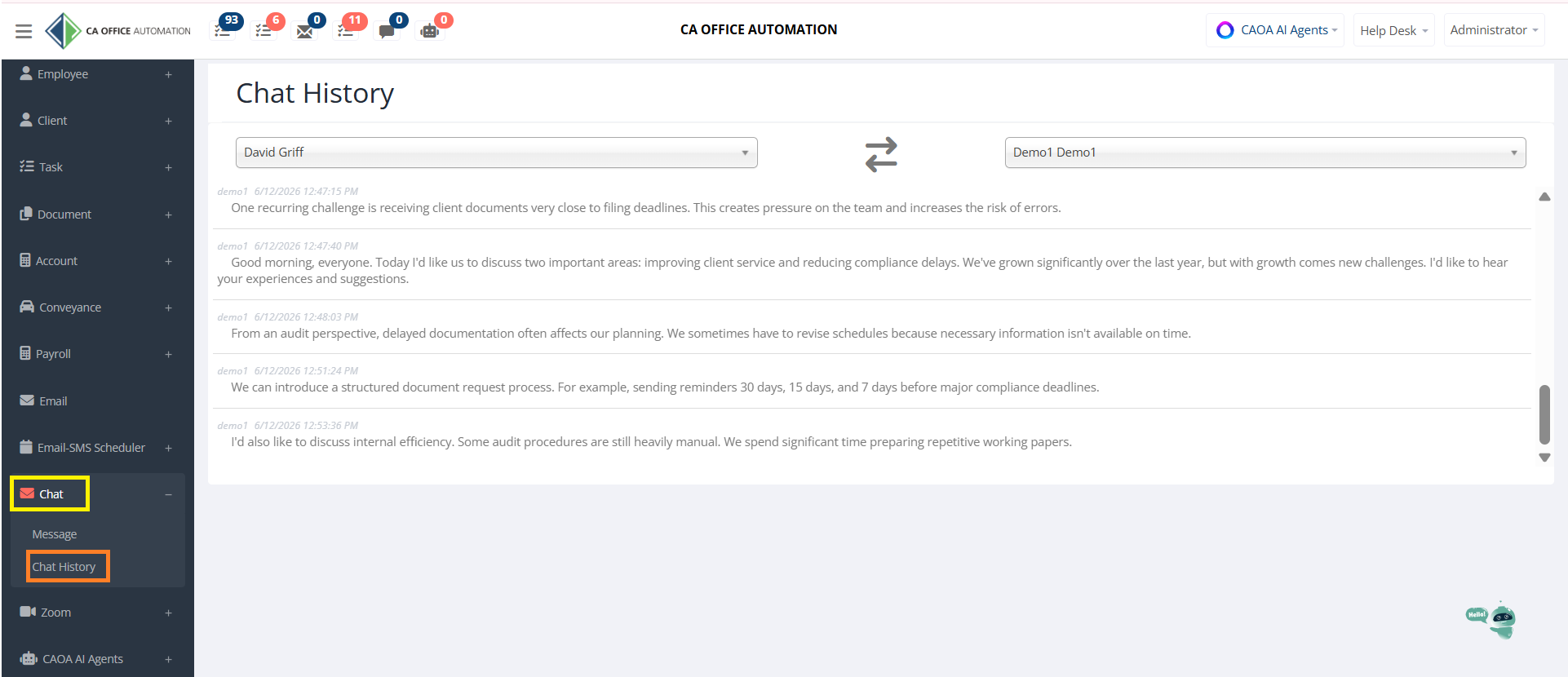
Go to Chat → Chat History.
“Here, you can select any Employee or Client from the dropdown.”
“The system will display the complete conversation history with date and time.”
“This is very useful for reviewing old discussions, client instructions, and internal communication records.”
“The Internal Chat Module ensures professional, secure, and centralized communication within CAOA, improving team coordination and client interaction.”