“Now we will see the Zoom Integration Module in CA Office Automation.”
“This module allows you to create, manage and join Zoom meetings directly from the software.”
Step 1 – Zoom API Setup
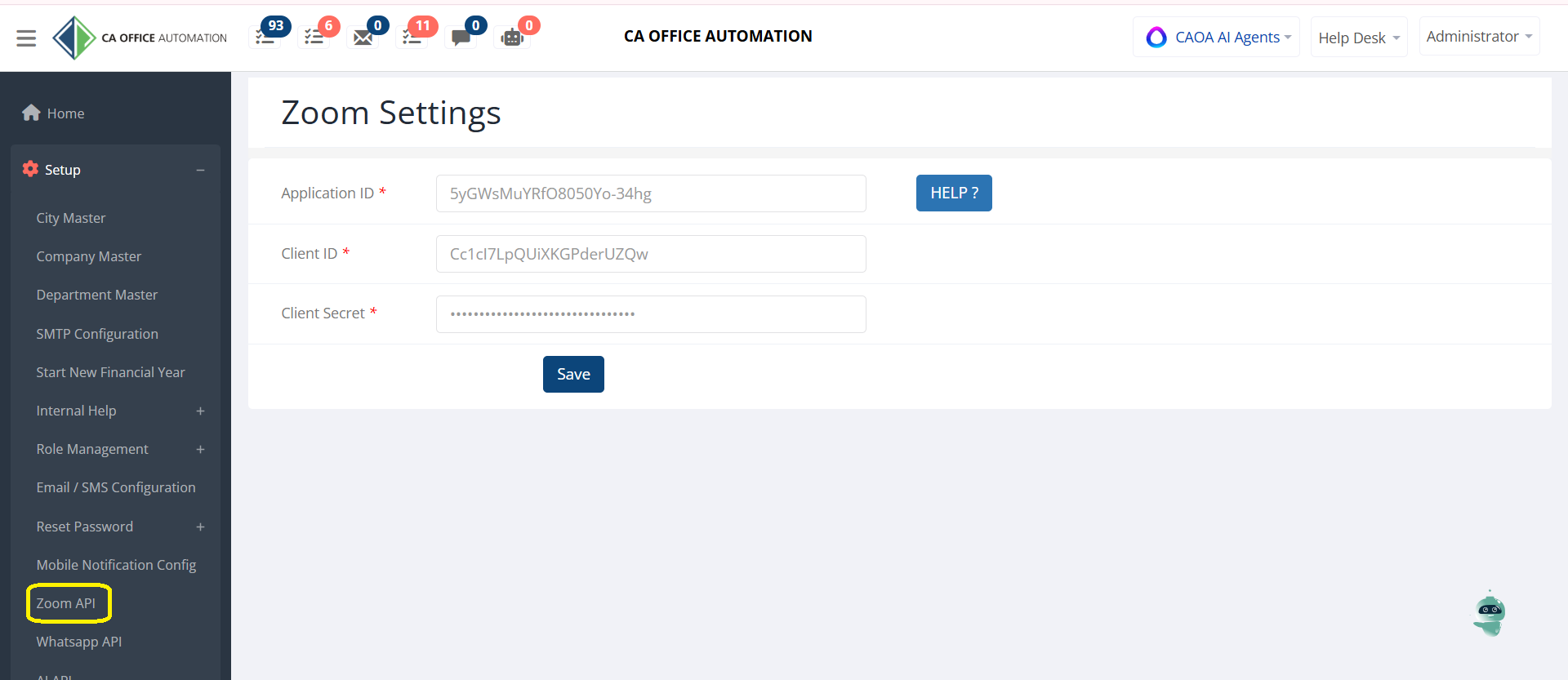
“First, go to Setup and click on Zoom API.”
“Enter your Application ID, Client ID and Client Secret.”
“These credentials are generated from Zoom Marketplace under Server-to-Server OAuth App.”
“We have already provided a detailed step-by-step help file to generate the Application ID, Client ID and Client Secret.”
“After saving the credentials, the system is successfully connected to Zoom.”
Step 2 – Create Zoom Meeting
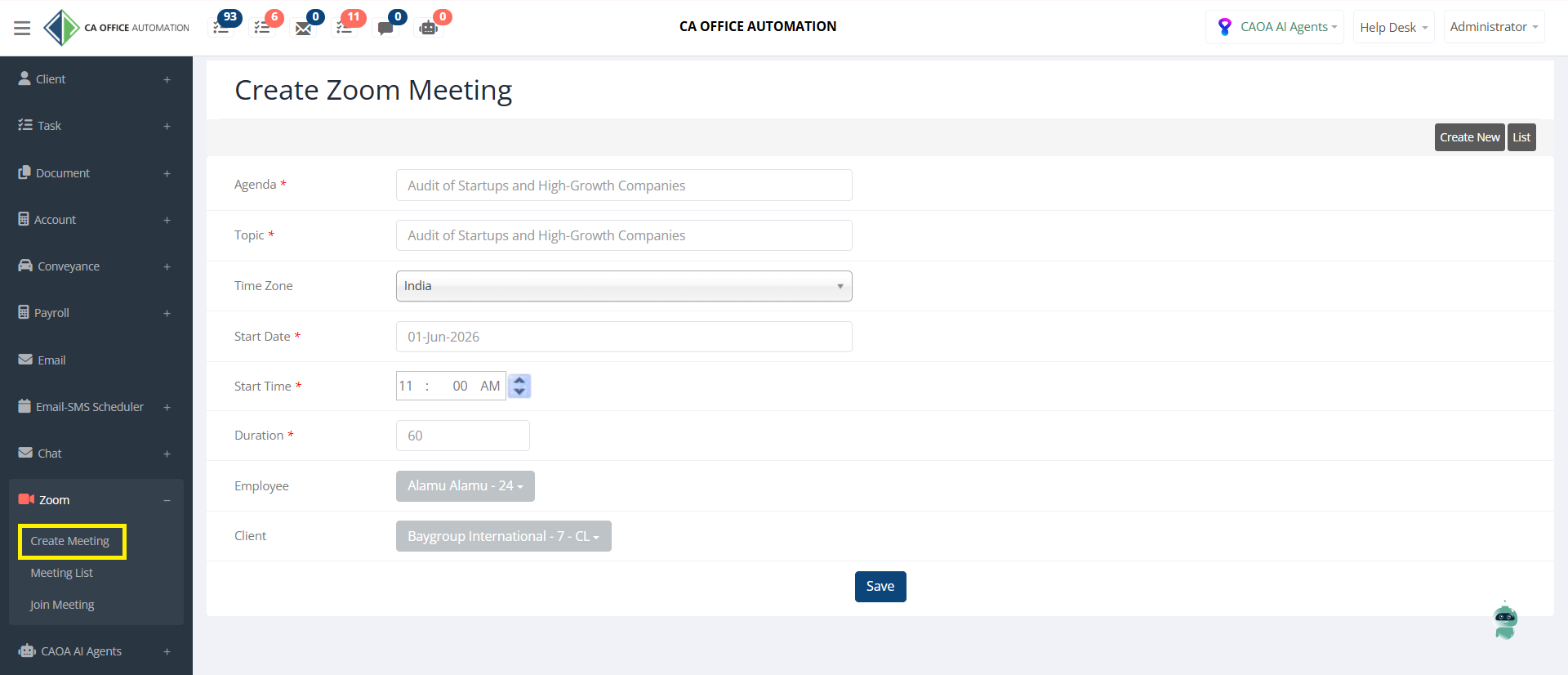
“Now go to Zoom → Create Meeting.”
“Enter the Agenda and Topic.”
“Select Time Zone, Date, Time and Duration.”
“You can assign employees and clients to this meeting.”
“Click Save.”
“The meeting is now created directly in your Zoom account.”
Step 3 – Zoom Meeting List
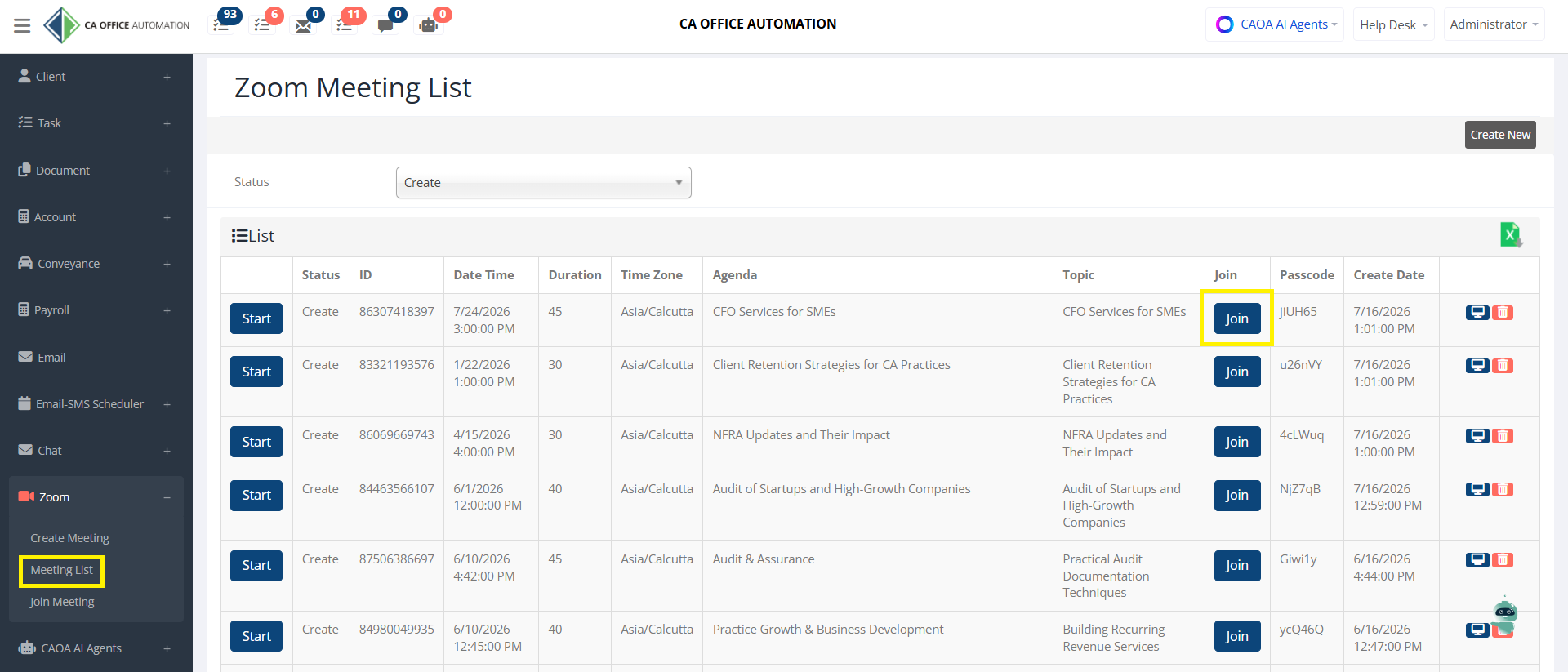
“Go to Zoom → Meeting List.”
“Here you can see all the created meetings.”
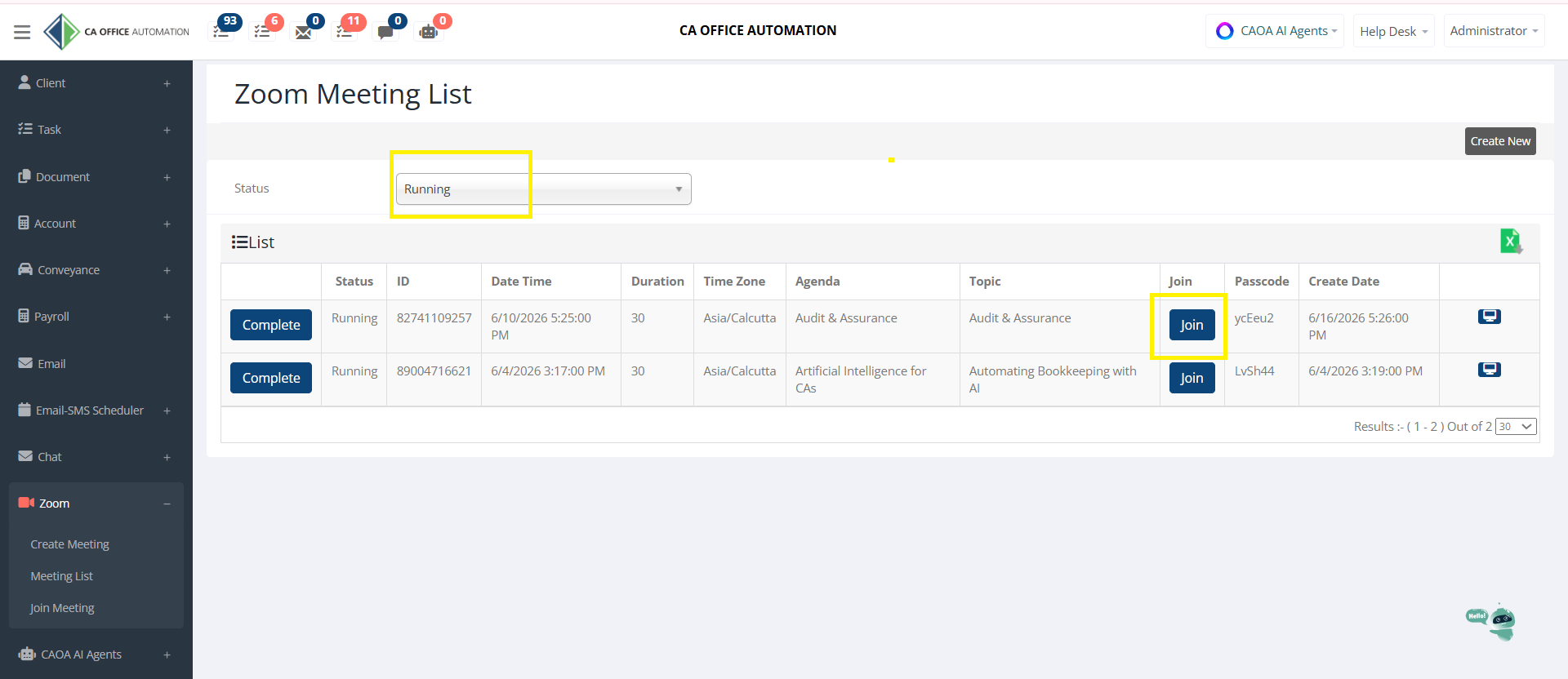
“You can filter meetings by Create, Running or Completed status.”
“You can directly click Join to attend the meeting.”
“You can also export the meeting list to Excel.”
“In Create status, the system provides options like Start Meeting, Edit Meeting and Delete Meeting.”
“When the user clicks on Start, the meeting status changes from Create to Running.”
Step 4 – Running Meeting Management
“Now let us see the Running Meeting workflow.”
“In Running status, users can directly join the live Zoom meeting from the software.”
“The system displays complete meeting details including Meeting ID, Date & Time, Duration, Time Zone, Agenda, Topic, Meeting URL and Passcode.”
“After completion of discussion, users can also enter Meeting Summary or discussion notes for future reference.”
“Finally, click on Close Meeting to complete the meeting process.”
“Once closed, the meeting status changes from Running to Completed.”
Step 5 – Completed Meeting Records
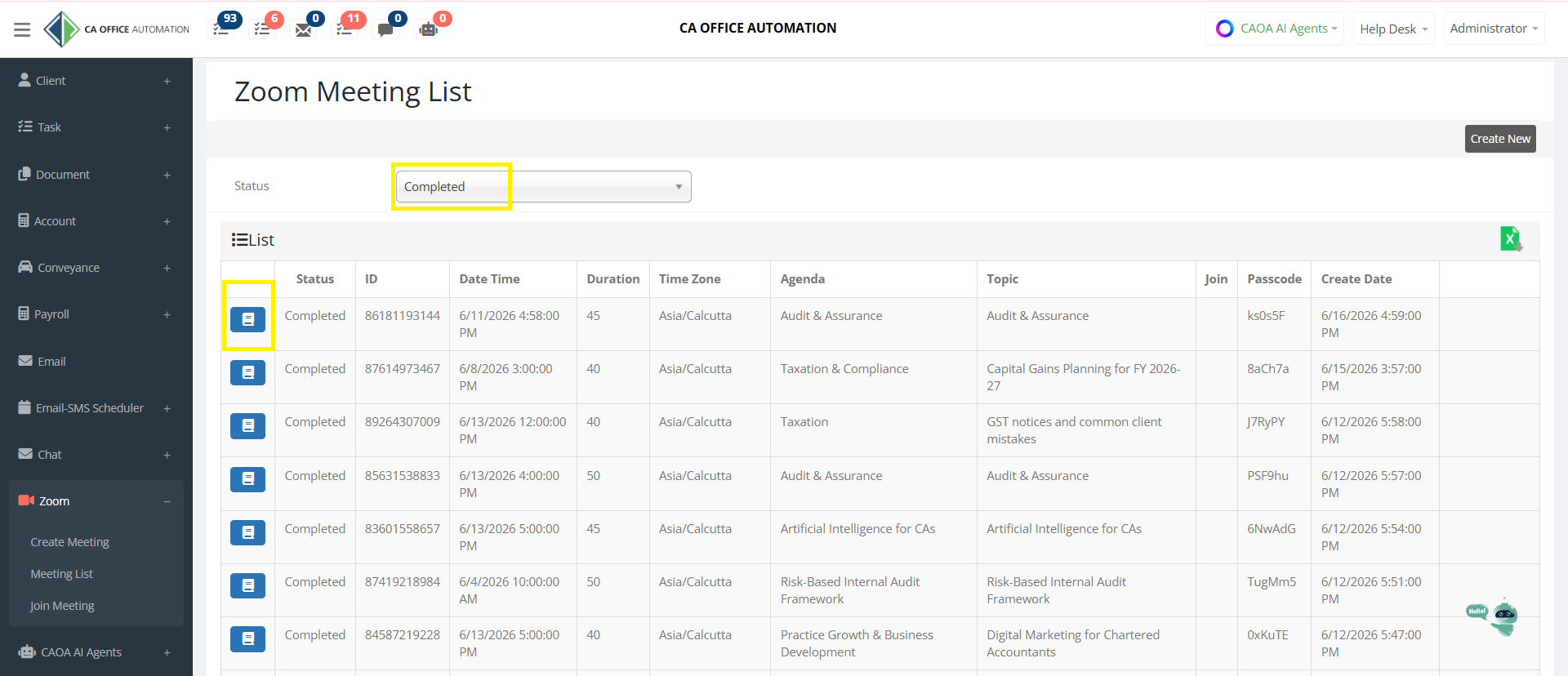
“In Completed status, all meeting records remain available for future reference.”
“This helps firms maintain proper meeting history, client discussion records and audit tracking.”
Step 6 – Join Zoom Meeting
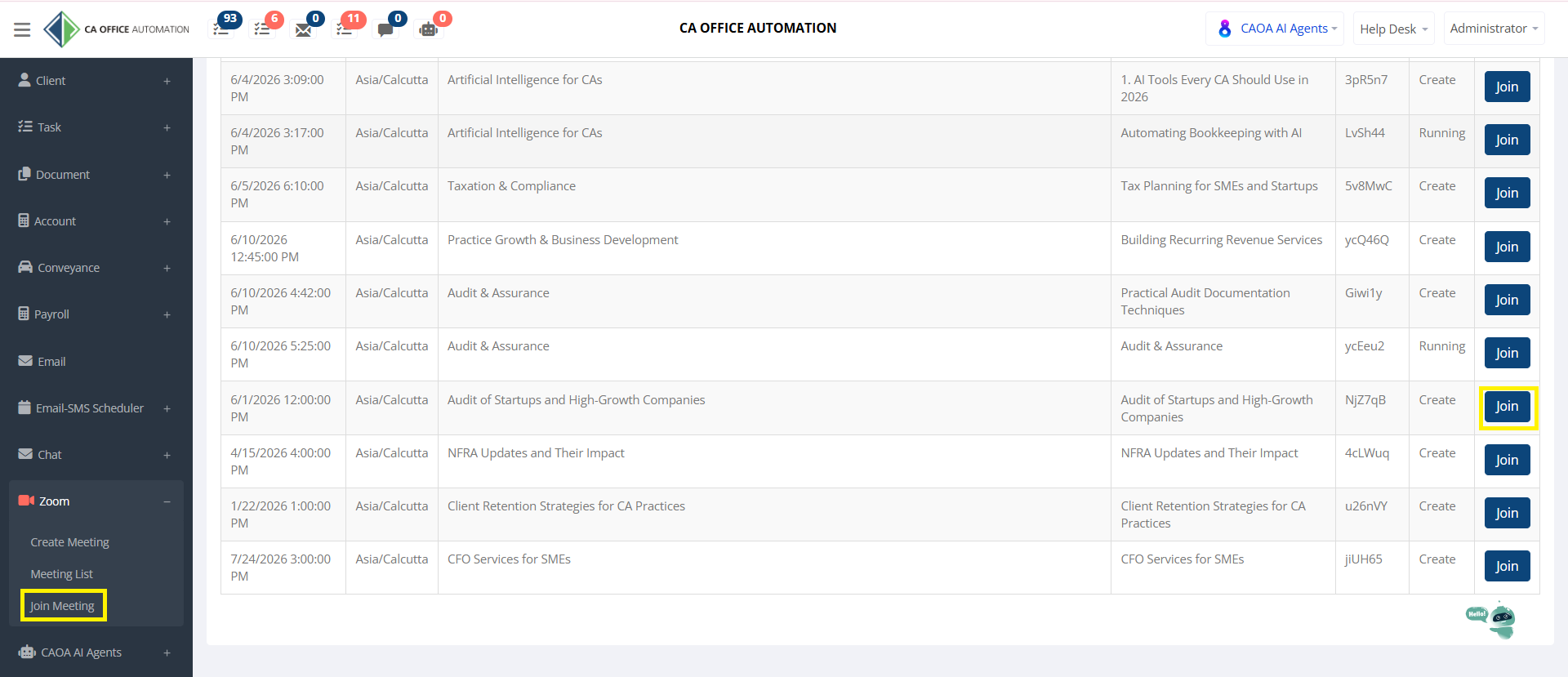
“Employees or clients can also go to Zoom → Join Meeting.”
“They will see their assigned meetings and can join directly from the system.”
“With Zoom Integration in CAOA, meeting scheduling and management become centralized, professional and fully integrated with your office workflow.”
“This improves communication, meeting tracking and overall operational efficiency for the firm.”